Filtering Data Tables
All tables in the 340B application can be filtered using one or more columns to make the data displayed more manageable.
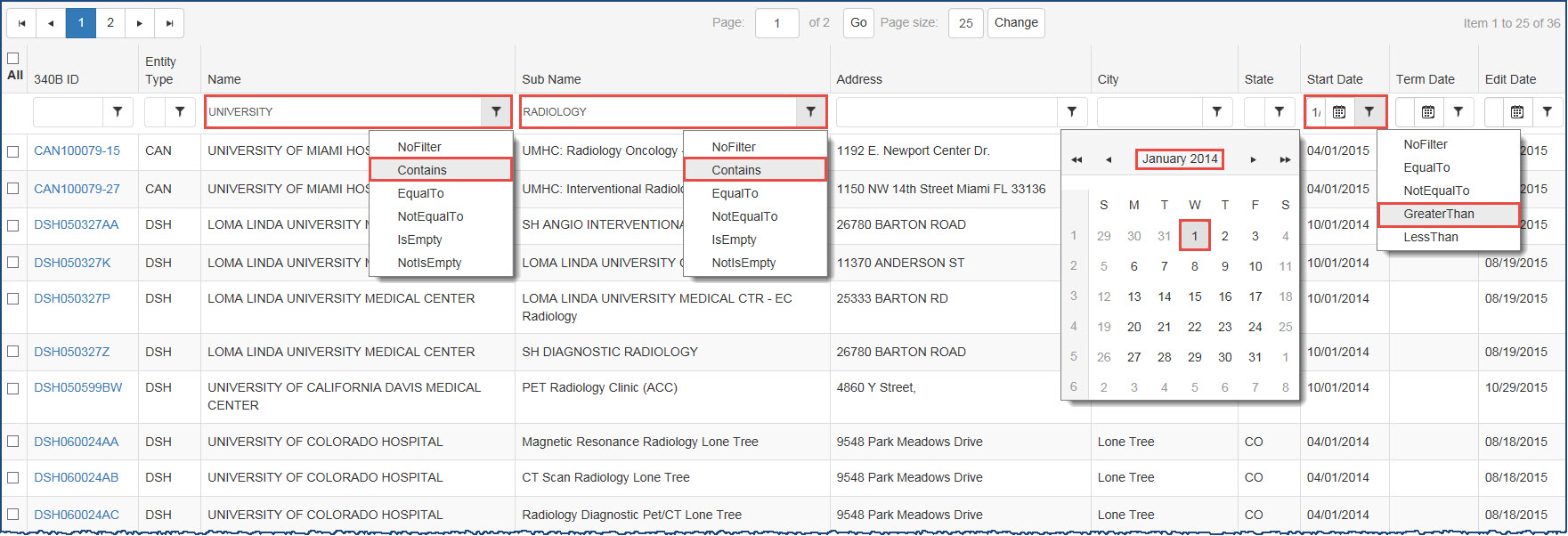
 Filtering Text Columns

-
Type the text to be used as a filter in the text box below the column heading.
- Click on the filter icon (
 ) and select one of the following options from the drop-down:
- Default – Clear existing text and redisplay results. Use this option to reset the results after filtering the data.
- Contains – Display only results that contain the filter text.
- Starts With – Display only results that start with the filter text.
- Ends With – Display only results that end with the filter text.
- = – Display only results that exactly match the filter text.
- <> – Display only results that do not match the filter text.
- The filtered table will show only those records with text that matches the filter.
Filtering Date Columns
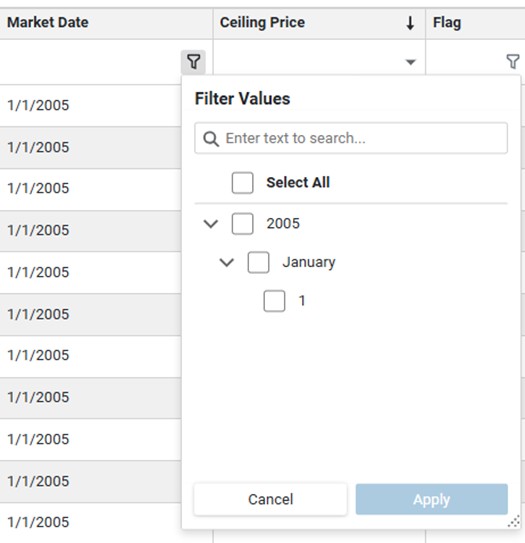
- Click the funnel-shaped filter icon () to apply a filter to the date column.
- The System will display the list of dates (grouped by year, then month, and then date) that are available for the records in the results set. You can directly check the years, months, and dates that you would like to filter the results on.
-
The table will show only those records with dates that match the filter.